

EUMETCast Terrestrial on AMT Flavour
💡 If you are interested in historical records, as opposed to data streaming, you may find data snapshots on the EUMETSAT User Portal's Data store. Apply the
DataandData StoreandEUMETCast Terrestrialfilters, or an specific satellite filter to sort out relevant available snapshots.
This Ansible Playbook configures an existing virtual machine running within the European Weather Cloud (EWC), to equip it with the EUMETCast Terrestrial over AMT software stack.
EUMETCast is EUMETSAT’s primary dissemination mechanism for the near-real-time delivery of satellite data. EUMETCast serves data through two complementary delivery systems: EUMETCast Satellite and EUMETCast Terrestrial.
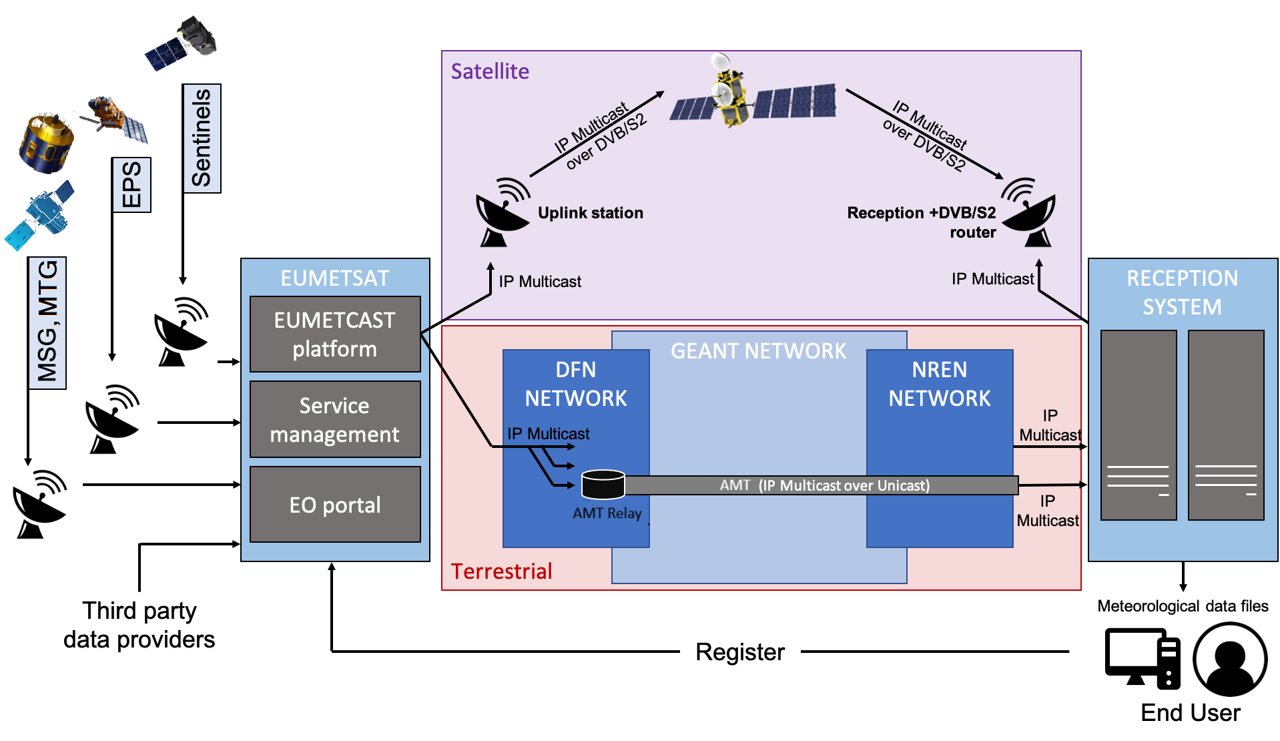
Terrestrial services currently supported, for near-real-time data distribution, are tabulated below. Additional terrestrial services will be created in the future for new missions. If unsure which of this data you may access, please contact the EUMETSAT User Helpdesk (ops@eumetsat.int).
| Terrestrial Service | Total Bandwidth (Mbps) | Data | |
| ter-1 | 240 | EPS, MSG, Sentinel-3A/B, Sentinel-5P, Third Party data, MTG | |
| ter-2 | 168 | Sentinel-6 data | |
| ter-3 | 230 | Sentinel-5P L1B, Sentinel-3A/B OLCI L1 FR, Sentinel-3A/B SLSTR L1B, FY3 HIRAS, FY4 GIIRS, GOSAT, MTG HRFI-FD (4 high-res full-disk bands) | |
| ter-4 | 120 (pre-operational) / 300 Mbps (operational) | EPS-SG data | |
| ter-5 | 100 | S6B data |
💡 For more detailed information, please check the EUMETCast channels and PIDs documentation page on the EUMETSAT User Portal.
Functionality
- Installs and configures the EUMETCast Terrestrial client over Automatic Multicast Tunnelling (AMT)
- Deploys the Tellicast terrestrial receiver runtime
- Configures network translation required for multicast reception over AMT
- Creates maintenance jobs for log and data retention
- Automatically cleans up disk space by keeping only the latest 5 minutes of transmitted data, under the
/home/eumetuser/datasubdirectory.
Prerequisites
⛔ When deploying on ECMWF site, network traffic required by this Item may be blocked due to ECMWF Firewall. Please get in touch with us through the EWC Support portal.
- Register a user account on the EUMETSAT User Portal
- Subscribe to the service and data for EUMETCast Terrestrial
- Ensure you select at least one EKU (temporal quota allocation)
- Request a EUMETCast Terrestrial user key for access from the EWC:
- Write to EUMETSAT Helpdesk (ops@eumetsat.int), making sure to provide them your EUMETSAT User Portal username alongside your request
- Verify the
eumetcastOpenStack Security Group exists in your EWC tenancy💡 You may create Security Groups via this EWC Community Hub Item if pre-required ones are missing.
Usage
Deploy via EWCCLI
⚠️ By default, deploying via EWCCLI is only possible from within your EWC private network. You may override by passing the
--external-ipflag upon deployment. Caution is advised as this weakens security on the deployed VM.
1. Setup working environment
pip install ewccli
2. Configure access credentials
ewc login
3. Deploy
💡 To lean about EWCCLI deployment customization, checkout the EWC User Stories: I want to use the ewccli documentation pages.
for example on EUMETSAT side:
ewc hub deploy eumetcast-terrestrial-amt-flavour --item-inputs tellicast_license_user_name=MYUSER --item-inputs tellicast_license_user_key=MYTOKEN --extra-volume 1200 --flavour-name 8cpu-64gbmem --security-groups eumetcast --security-groups ssh --external-ip
Remember to adjust flavour, security group if needed.
Deploy via native tooling (Ansible)
1. Setup working environment
-
Install git (version 2.0 or higher )
-
Install python (version 3.9 or higher)
-
Install ansible (version 8.7 or higher)
-
If you plan to configure an existing VM, ensure it meets the minium requirements before proceeding:
- VM Image: Ubuntu 22
- VM Plan: 8 CPU cores, 64GB RAM, 265GB Disk + 1TB Disk (secondary)
⚠️ Make sure the secondary disk is formatted and mounted by following this guide steps from the EWC Knowledge Base.
- Network: Private
- Security Groups:
eumetcast - Floating IP: Optional (not recommended from a security standpoint)
Otherwise, provision a new VM with above specifications before continuing (see EWC Getting Started: Provision a VM for details).
2. Clone the repository
git clone https://github.com/ewcloud/ewc-ansible-playbook-flavours-and-provisioning.git
2.1. Change to the specific Item's subdirectory
cd playbooks/eumetcast-terrestrial-amt-flavour
2.2. Checkout an specific Item's version
⚠️ Make sure to replace
x.y.zin the command below, with your version of preference.
git checkout x.y.z
3. Download Ansible dependencies
💡 By default, Ansible Roles are installed under the
~/.ansible/rolesdirectory within your working environment.
Download the correct version of the Ansible dependencies, if you haven't done so already:
ansible-galaxy role install --force -r requirements.yml
4. Specify the target host and SSH credentials
Create an inventory file, to specify address/credentials that your local working environment should use to connect to the target VM.
Copy into the file one of the two snippets below, and replace the placeholders (i.e. values enclosed in < > characters):
-
To connect within the EWC private network
# inventory.yml
---
ewcloud:
  hosts:
    target:
      ansible_python_interpreter: auto
      ansible_host: <add the PRIVATE IP address of the target host>
      ansible_ssh_private_key_file: <add the path to local SSH private key file>
      ansible_user: ubuntu
      ansible_ssh_common_args: -o StrictHostKeyChecking=no
OR
-
To connect from the public internet to a EWC public IP address
# inventory.yml
---
ewcloud:
  hosts:
    target:
      ansible_python_interpreter: auto
      ansible_host: <add the PUBLIC IP address of the target host>
      ansible_ssh_private_key_file: <add the path to local SSH private key file>
      ansible_user: ubuntu
      ansible_ssh_common_args: -o StrictHostKeyChecking=no
OR
-
To connect from the public the public internet to a EWC private IP address
⚠️ This requires an SSH Bastion to be already provisioned within your EWC tenancy.
# inventory.yml
---
ewcloud:
  hosts:
    target:
      ansible_host: <add the PRIVATE IP address of the target host>
      ansible_ssh_user:  ubuntu
      ansible_ssh_private_key_file: <add the path to local SSH private key file>
      ansible_python_interpreter: auto

all:
  vars:
    ansible_ssh_common_args: >-
      -o StrictHostKeyChecking=no
      -o UserKnownHostsFile=/dev/null
      -o ProxyCommand="ssh -o StrictHostKeyChecking=no -o UserKnownHostsFile=/dev/null -o BatchMode=yes -W %h:%p -i <add the path to local SSH private key file> cloud-user@<add the PUBLIC IP address of the SSH bastion>"
5. Configure and apply the template
-
Interactive Mode
By running the following command, you can trigger an interactive session that prompts you for the necessary user inputs, and then applies changes to your target EWC environment:
ansible-playbook -i inventory.yml eumetcast-terrestrial-amt-flavour.yml
OR
-
Non-Interactive Mode
💡 To learn more about defining variables at runtime, checkout the official Ansible documentation.
You can also run in non-interactive mode by passing the
--extra-varsor-eflag, followed by a map of key-value pairs; one for each and every available input (see inputs section below). For example:ansible-playbook \ -i inventory.yml \ -e '{ "tellicast_license_user_name":"<redacted>", "tellicast_license_user_key":"<redacted>" }' \ eumetcast-terrestrial-amt-flavour.yml
Inputs
| Name | Description | Type | Default | Required |
|---|---|---|---|---|
| tellicast_license_user_name | Tellicast license user identifier, equivalent to your EUMETSAT User Portal username. | string |
n/a | yes |
| tellicast_license_user_key | Tellicast license activation key (i.e. the user key you obtained via from EUMETSAT Helpdesk). | string |
n/a | yes |
Dependencies
💡 Upon execution, a SBOM (SPDX format) is auto-generated and stored in the VM's file system root directory (see
/sbom.json).
| Name | Home URL |
|---|---|
| ewc-ansible-role-eumetcast-terrestrial-amt | https://github.com/ewcloud/ewc-ansible-role-eumetcast-terrestrial-amt |
Operation
Checkout the how-to guides to learn about management of the Item after initial setup.